Media Library for training videos and coach notes
OpenMat Media Library gives coaches a simple place to share class recaps, training videos, images, YouTube links, and notes with members.
Last updated: 1 May 2026
Share training content
Add videos, images, YouTube links, and coach notes to one post.
Choose who sees it
Publish to everyone, one programme, or selected members.
Save drafts
Prepare a post privately, then publish it when it is ready.
Member portal access
Members watch published posts from the Media tab or Media Library home card.
What it is
The Media Library is a shared content area for your organisation. Coaches can create a post with a title, notes, and media, then publish it to the members who should see it.
It is useful for technique recaps, class homework, programme resources, and quick follow-up notes after training.
How to use it
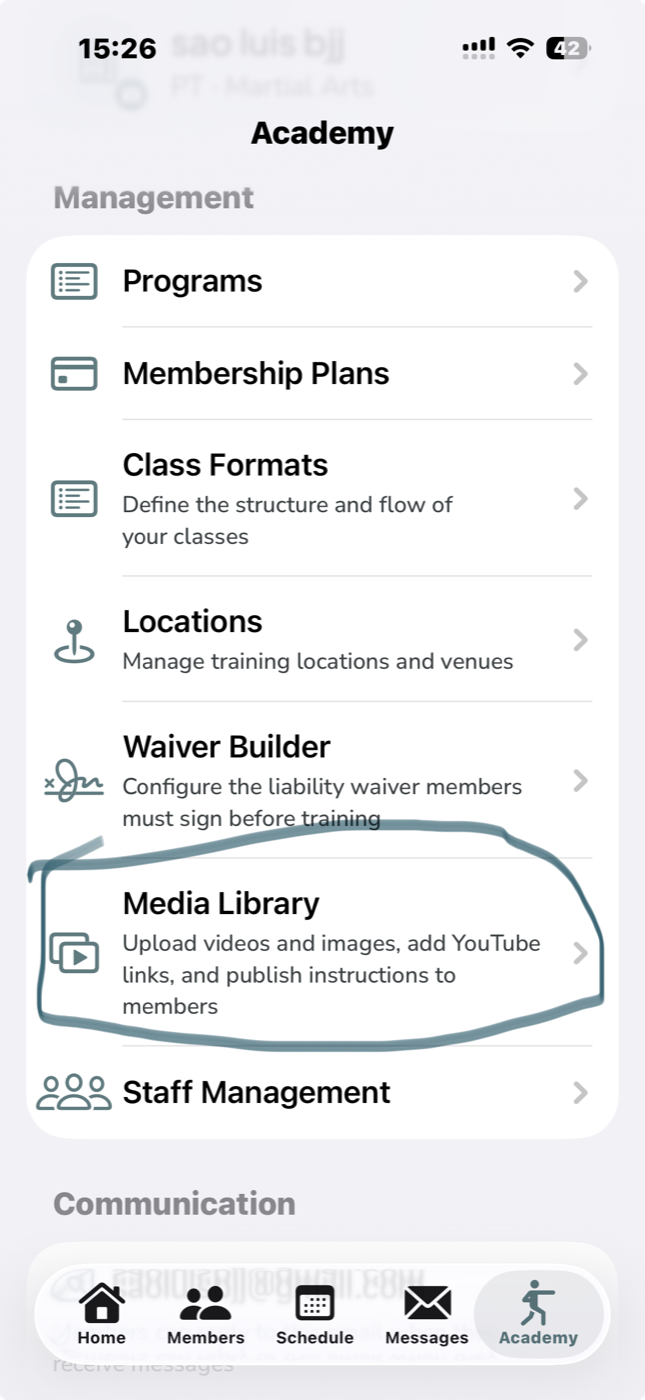
- Open the organisation tab: Academy, Studio, Box, Gym, or Club.
- Tap Media Library.
- Create a new media post.
- Add a clear title and short coach notes.
- Attach images, videos, or a YouTube link.
- Choose the audience: all members, a programme, or selected members.
- Save it as a draft or publish it to the member portal.
Choose the audience
Not every video needs to go to the whole academy. You can publish a media post to all members, one programme, or a selected group of members.
What members see
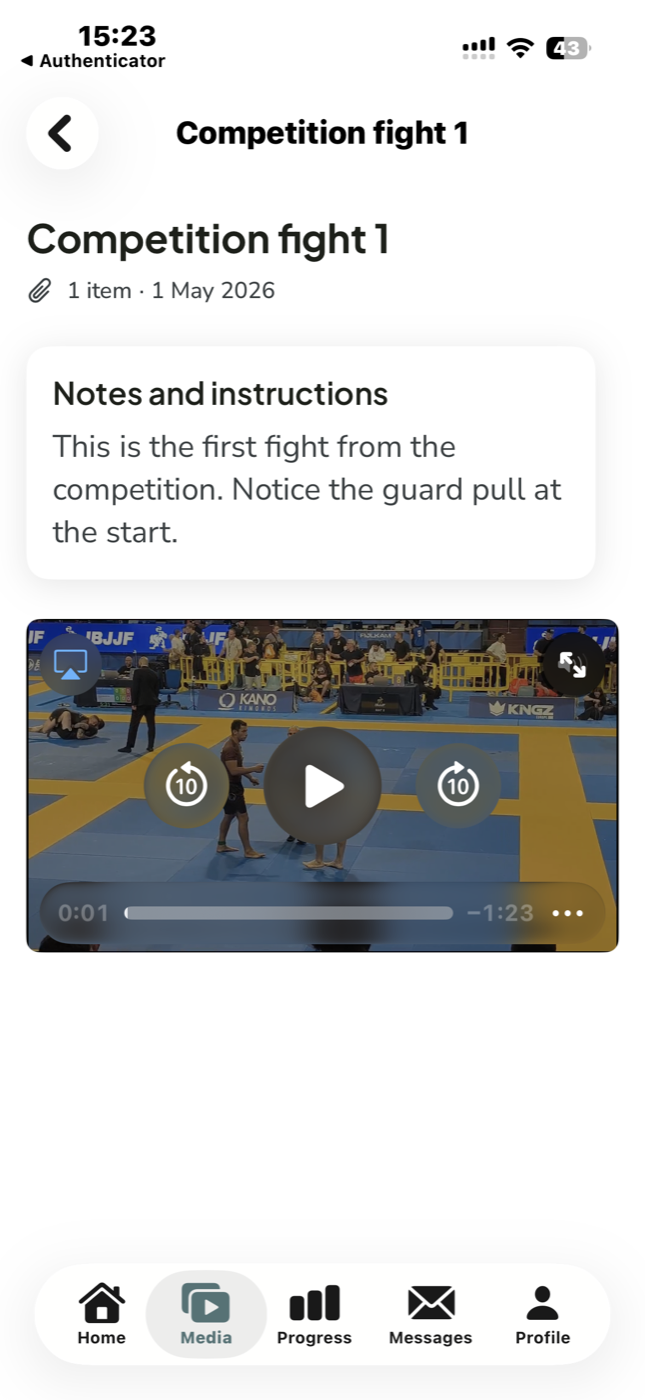
Members open the Media tab in their member portal, or the Media Library card on the member home screen. They can read the coach notes, view images, play videos, and open YouTube links from there.
Good uses for academies
- Post a technique recap after class.
- Share homework with a programme or belt group.
- Keep reference videos inside the member portal.
- Send selected members extra notes after a session.
Frequently asked questions
Does this replace YouTube?
No. You can still use YouTube. The Media Library simply gives members one familiar place to find the content from your academy.
Can members upload their own videos?
The Media Library is currently staff-authored. Coaches create the posts, and members view the content shared with them.
Where is it in the app?
Staff can open the main organisation tab, then tap Media Library. Depending on the organisation type, that tab may be called Academy, Studio, Box, Gym, or Club. Members can open the Media tab in their member portal.